

Opening diagnosis: what you’ll smell, see, and hear first
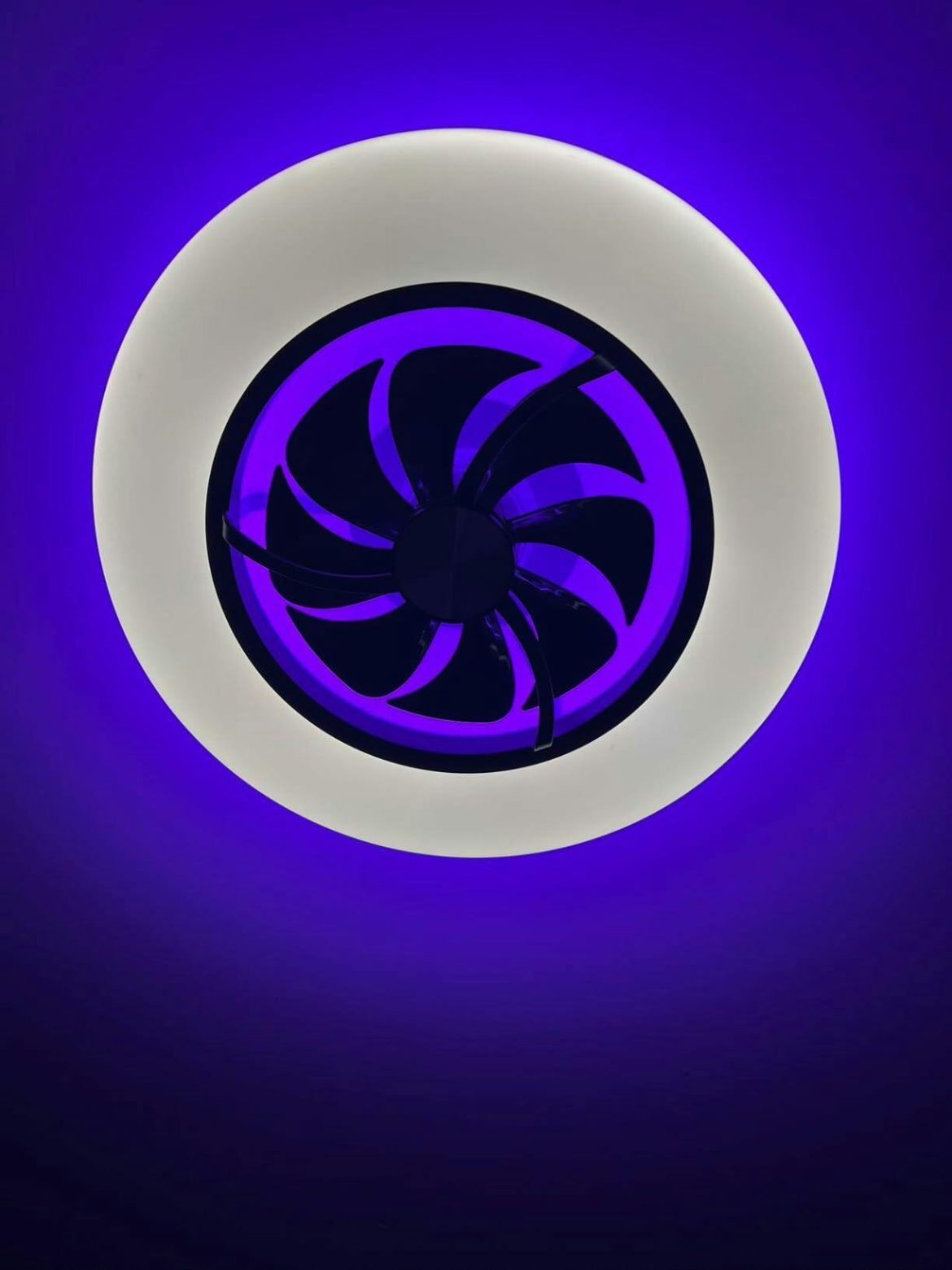
The first sign is subtle — a fan that hums but won’t obey, a light that lingers off when you tap the app. Start here: check the obvious. Is the unit powered? Is your router blinking sane? If you’ve got a smart ceiling fan with light, these symptoms usually point to one of three problem families: network pairing, remote signal, or firmware. Picture a crowded kitchen: too many cooks, too many signals, and the dish comes out late. The goal is to narrow the scent — isolate the source quickly so the fix is surgical.
Common causes of connectivity drops
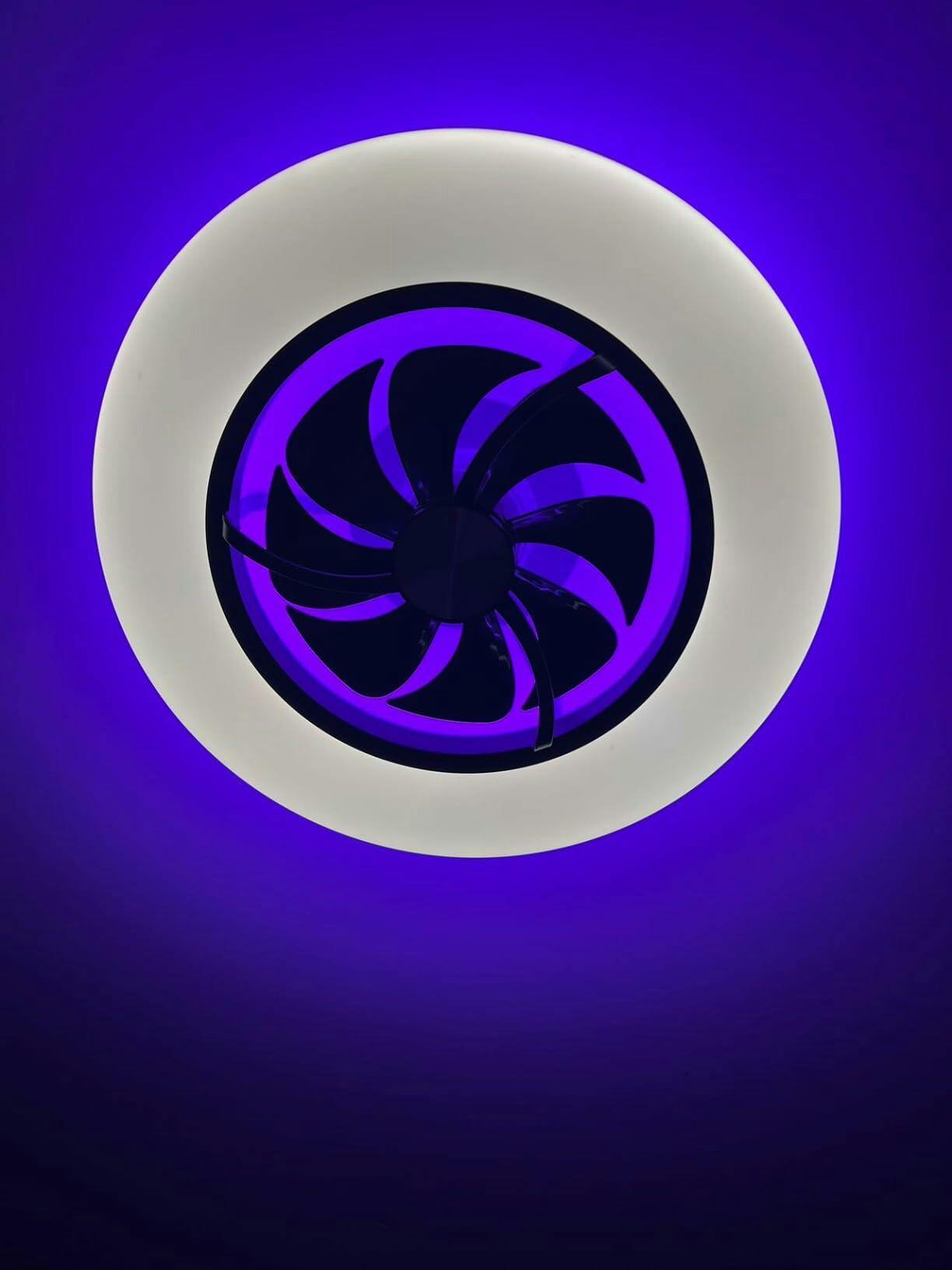
Connectivity problems often feel random but they fall into predictable categories. Wi‑Fi dropouts from weak signal or channel congestion; router settings blocking device ports; or a mis-paired device after a power outage. Less obvious: DHCP lease churn (the fan loses its IP) and interference from nearby 2.4 GHz devices. On units with hub support, a failing hub or overloaded mesh node is another usual suspect. In short: signal strength, network policy, and pairing state are the three pillars to inspect.
Quick checks before deeper troubleshooting
Do these fast and in this order: power cycle the fan and router; confirm your phone and fan are on the same frequency band (most smart fans use 2.4 GHz); open the manufacturer app and check device status; and verify the remote works with fresh batteries. If the app shows “offline,” try reconnecting through the pairing flow. If you see intermittent lag, run a simple Wi‑Fi speed test near the fan — low throughput or high latency often correlates with sluggish app control.
Fixing app and Wi‑Fi lag step-by-step
1) Reboot and isolate. Power down fan and router for 30 seconds, then bring router up first. 2) Reduce congestion. Move other high-bandwidth devices away during pairing. 3) Check router settings. Ensure AP isolation is off, and that the router isn’t enforcing strict MAC filtering. 4) Reserve an IP. Add a DHCP reservation for the fan in your router so it won’t lose its address. 5) Re-pair the device. Delete it from the app and run the official pairing routine — this often resets network credentials cleanly.
Troubleshooting remote response lags (IR/RF and Bluetooth remotes)
Remote lag has a different flavor: physical signal versus network latency. IR remotes need a clear line of sight to the receiver — anything opaque between remote and sensor will throttle response. RF and Bluetooth remotes can be blocked by metallic fixtures or dense insulation. Replace batteries first. Then move closer and test. If response improves, you’re looking at range or interference, not firmware. If the remote pairs but commands queue, check for RF interference from baby monitors, cordless phones, or neighboring smart devices — they all compete on frequencies.
Advanced fixes: firmware, OTA updates, and mesh networks
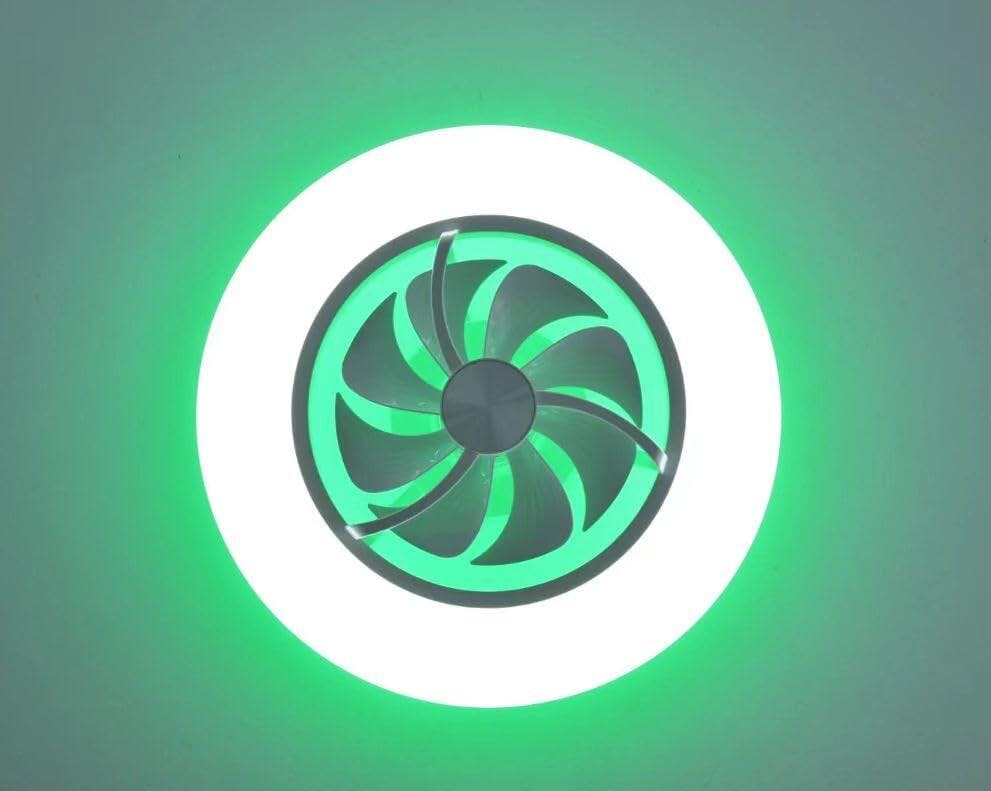
If basic moves don’t help, dig deeper. Firmware bugs can create persistent lag or dropouts; check the app for an OTA update and apply it. For homes with mesh Wi‑Fi, place the fan near a primary node during pairing, then move it back. Some mesh systems route IoT traffic suboptimally — set Quality of Service for the fan or create a dedicated IoT SSID if your router supports it. If you manage multiple smart devices, monitor latency during peak hours — packet loss and jitter are killers for responsive control.
When to suspect hardware or installation problems
After software and network checks, hardware may be the issue. Loose antenna connectors, a damaged IR sensor, or poor internal wiring can degrade performance. Also check the mounting: if the fan’s internal antenna faces the ceiling cavity filled with foil insulation or metal ducting, signal strength will plummet. In those cases, relocation or a discrete external antenna fix is warranted — or consult support for inspection.
Common mistakes users make — and how to avoid them
One: assuming “smart” means foolproof — it doesn’t; networks are fragile. Two: pairing in a crowded RF environment — do it near the router. Three: skipping first-article checks after installation — always test commands with both the remote and app before finalizing mounts. And don’t ignore firmware prompts — delaying updates can leave you chasing bugs that were already fixed. — Small habits prevent most repeat calls to support.
Real-world anchor: why this matters now
During the heatwaves of 2023, many households leaned on smart fans to reduce AC runtime; unsurprisingly, networked devices were put under heavy concurrent load. When your fan becomes a frontline comfort device, reliable controls mean fewer sweaty disturbances and less energy waste. So these troubleshooting steps aren’t academic — they’re about keeping comfort steady when it matters.
Alternatives and product notes
If your unit is repeatedly problematic even after troubleshooting, consider alternatives. Some fans rely purely on local RF remotes and minimal cloud calls, offering rock-solid latency at the cost of remote app features. Others integrate deeply with home platforms and offer advanced scheduling but require robust network design. If you’re trying a different approach, check units that explicitly state local control or offer dual-mode local/cloud operation — they behave more predictably when Wi‑Fi hiccups occur. Also, if you own a smart ceiling fan with light and remote, pay attention to the dual-control design: the interplay between app and remote is often the source of confusion.
Advisory — three golden rules for reliable, responsive smart fan control
1) Prioritize network placement: pair devices near a primary router or mesh node, then optimize placement for long-term use. 2) Keep firmware current and schedule OTA updates during low-use hours to avoid surprise reboots. 3) Design for local control: when latency matters, choose devices that support local command processing or a dedicated IoT SSID to reduce cloud dependency.
Follow those rules and you’ll go from frustrated to in-control — measurable wins like faster response times and fewer dropouts will follow. Trust the process; it’s where reliability is built. Orison. —